COD reconciliation between Haravan and Allingo
Shipping with several carriers and downloading a separate COD file from each one at the end of every cycle? For orders shipped through Allingo, COD from all carriers sits together in one statement. You approve once, receive the money in your bank account, then update COD status on Haravan with a single Excel file.
1.The COD reconciliation flow on Allingo
- Ship orders from Haravan through Allingo.
- Track COD for every order in Thanh toán > Thu hộ COD (Payments > COD collection).
- Allingo receives the COD money from each carrier, on that carrier’s reconciliation schedule.
- You open Thanh toán > Bảng kê (Payments > Statements), check the statement and approve it.
- Allingo transfers the money to the bank account linked on Allingo.
- Download the Excel file from the statement to update COD status on Haravan.
2.Step-by-step guide
The five steps below take you from tracking COD to updating its status on Haravan.
Step 1: Track your COD
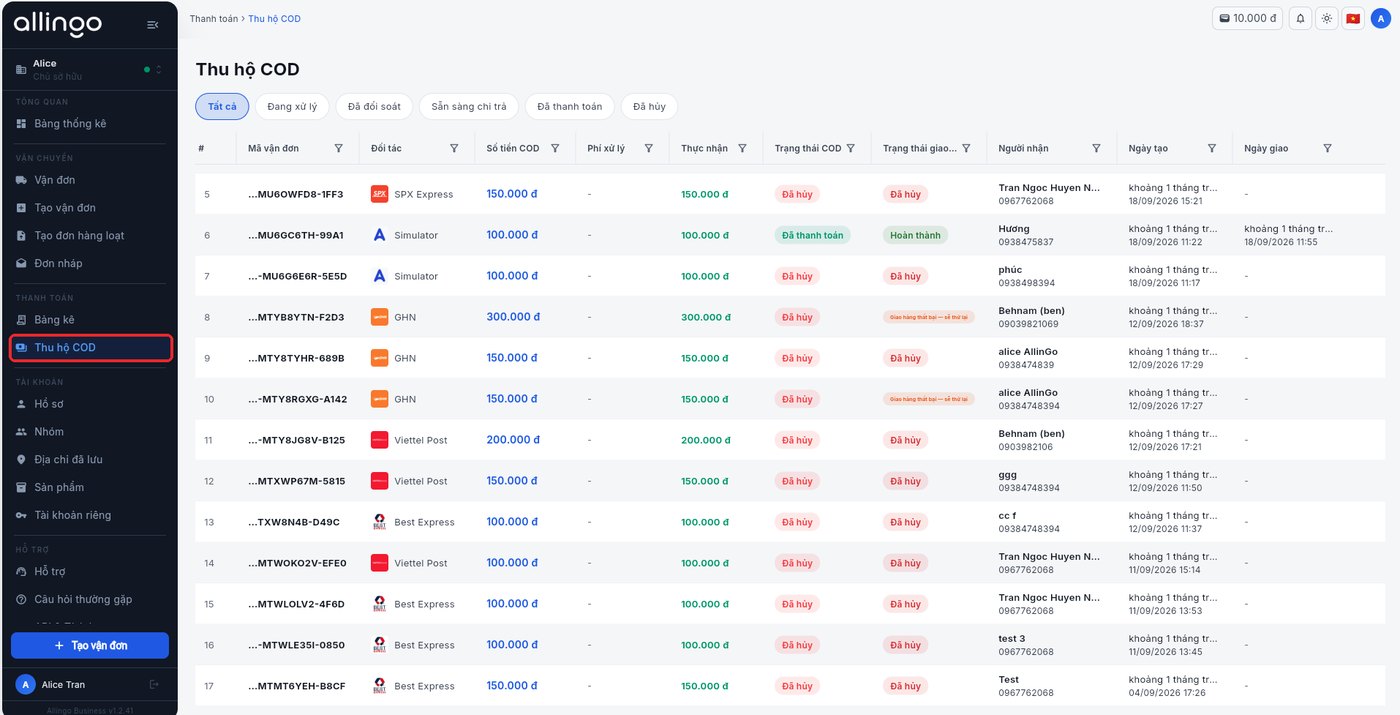
- Open COD collection: go to Thanh toán > Thu hộ COD. COD from all carriers appears in one list.
- Read each waybill: waybill code, carrier, COD amount, processing fee, net amount and COD status.
- Filter by stage: the tabs Đang xử lý (Processing), Đã đối soát (Reconciled), Sẵn sàng chi trả (Ready for payout), Đã thanh toán (Paid) and Đã hủy (Cancelled) show where each order stands.
Step 2: Allingo reconciles COD with the carriers
Once an order with COD is delivered, Allingo works directly with the carrier to receive the COD money, on that carrier’s reconciliation schedule. You don’t need to contact the carrier or download files from them. In the meantime, you can still follow each order’s progress in Thu hộ COD.
Step 3: Check and approve the statement
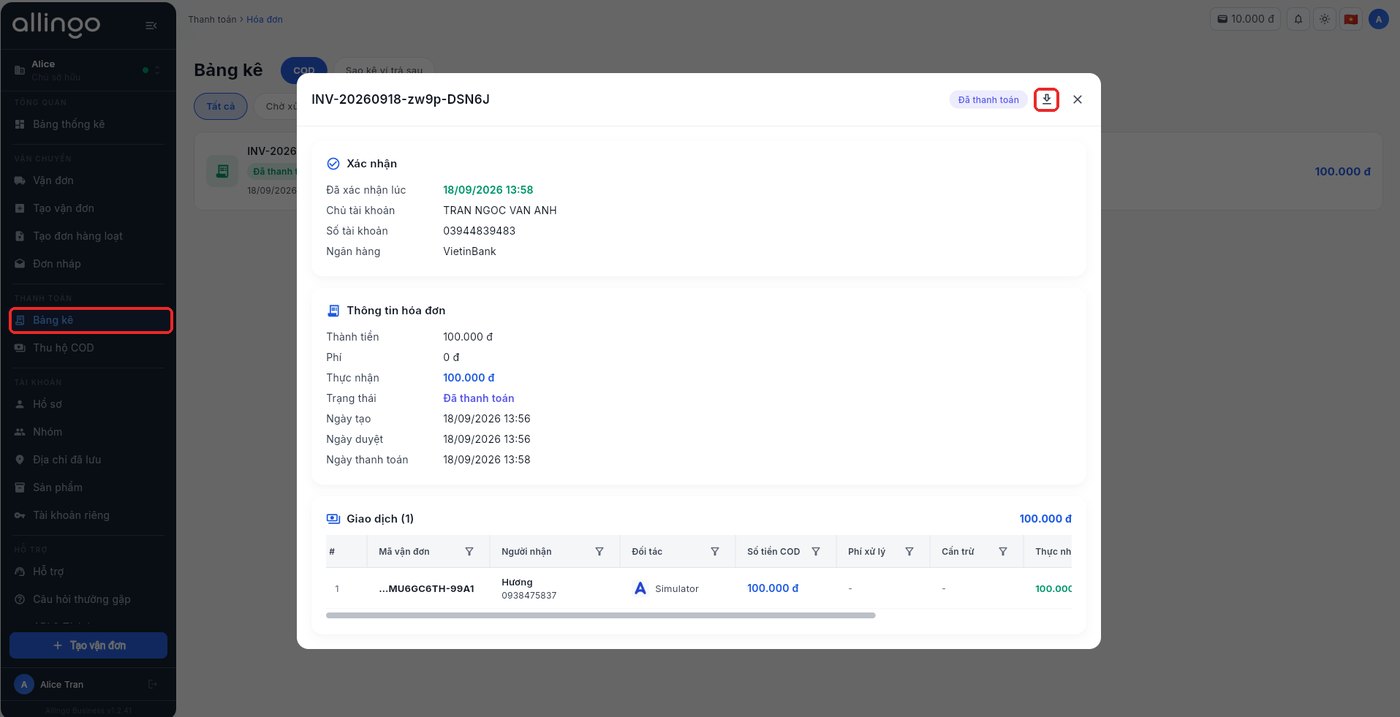
- Open the statement: once Allingo has received the COD money from the carrier, it creates a statement for those orders. Go to Thanh toán > Bảng kê, select the COD tab and open the statement (code format INV-...).
- Check and approve: review the amount, fee, net amount and the list of transactions below, then approve.
Step 4: Receive COD in your bank account
After the statement is approved, Allingo transfers the net amount to the bank account linked on Allingo. The statement shows the receiving account and payment date, and its status changes to Đã thanh toán (Paid).
Step 5: Update COD status on Haravan
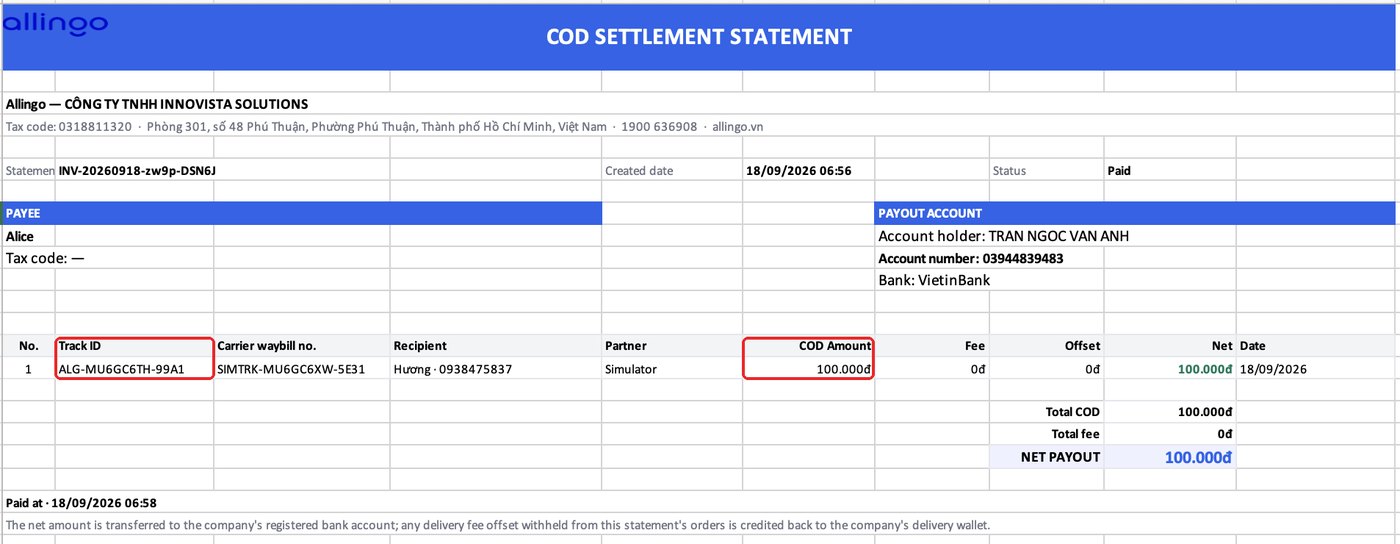
- Download the Excel file: in the statement, click the download button.
- Use the two columns you need: Track ID and COD Amount, to update COD status on Haravan by following Haravan’s guide (in Vietnamese).
3.Quick comparison
| Task | Before connecting Allingo | After connecting Allingo |
|---|---|---|
| View COD | A reconciliation file from each carrier | One list in Thu hộ COD |
| Reconcile | Enter each carrier’s file into the Haravan file | One statement, approved once |
| Receive money | Carrier by carrier | Allingo transfers to your linked bank account |
| Update COD on Haravan | From several carrier files | From one Excel file of the statement |
4.Good to know
- Schedules vary by carrier: when Allingo receives the COD money depends on the schedule of the carrier you choose.
- COD by carrier: not every carrier supports COD collection in the same way.
- Fees: the Processing fee and Offset columns appear on the statement and in the Excel file.