How to connect Allingo on Pancake POS and create an order
Ship with multiple carriers without opening a separate app for each. Connect Allingo once in Pancake POS, then choose a carrier right on the order page.
Screenshots show the Pancake POS interface in Vietnamese. Button and menu names are given in English, with the Vietnamese label in brackets where it appears on screen.
1.Connect Allingo in Pancake POS
You only need to connect once. After that, Allingo appears in the shipping partner list of Pancake POS.
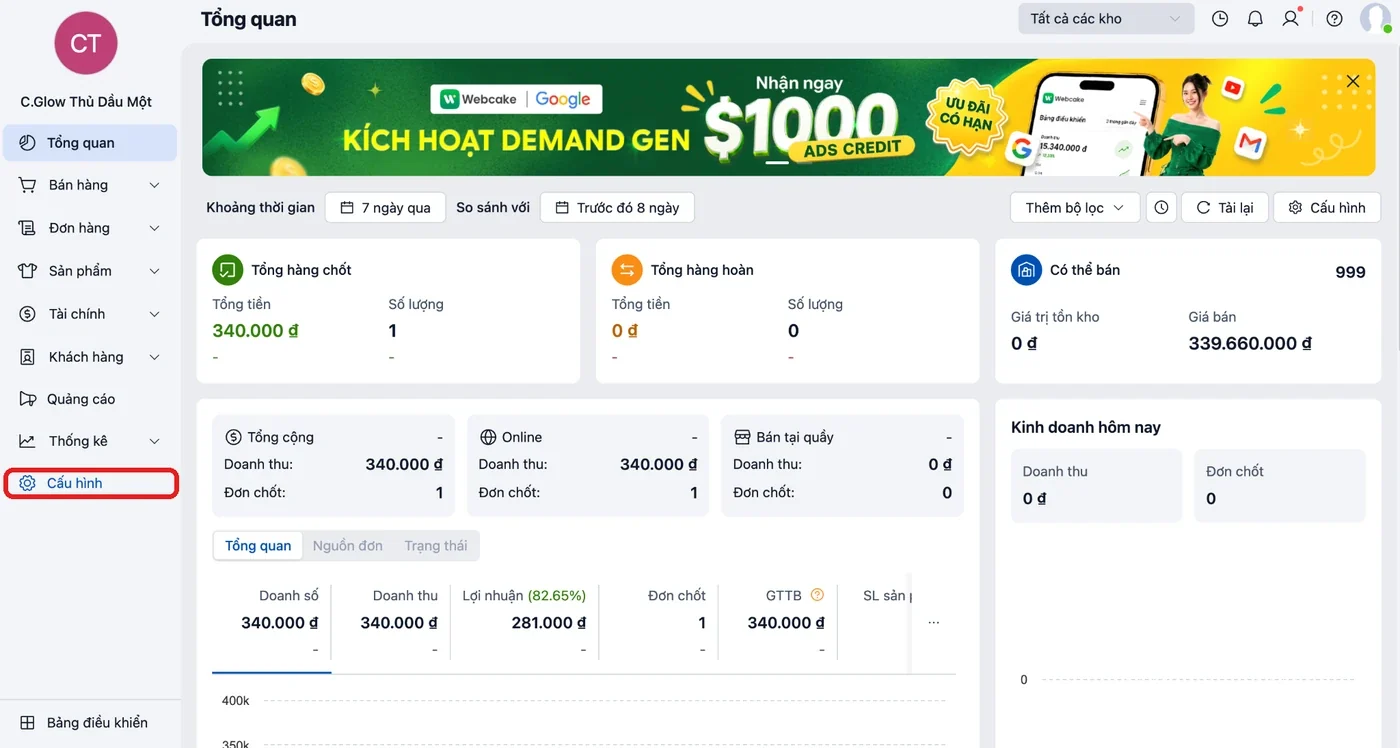
- In Pancake POS, select Settings (Cấu hình) in the left menu.
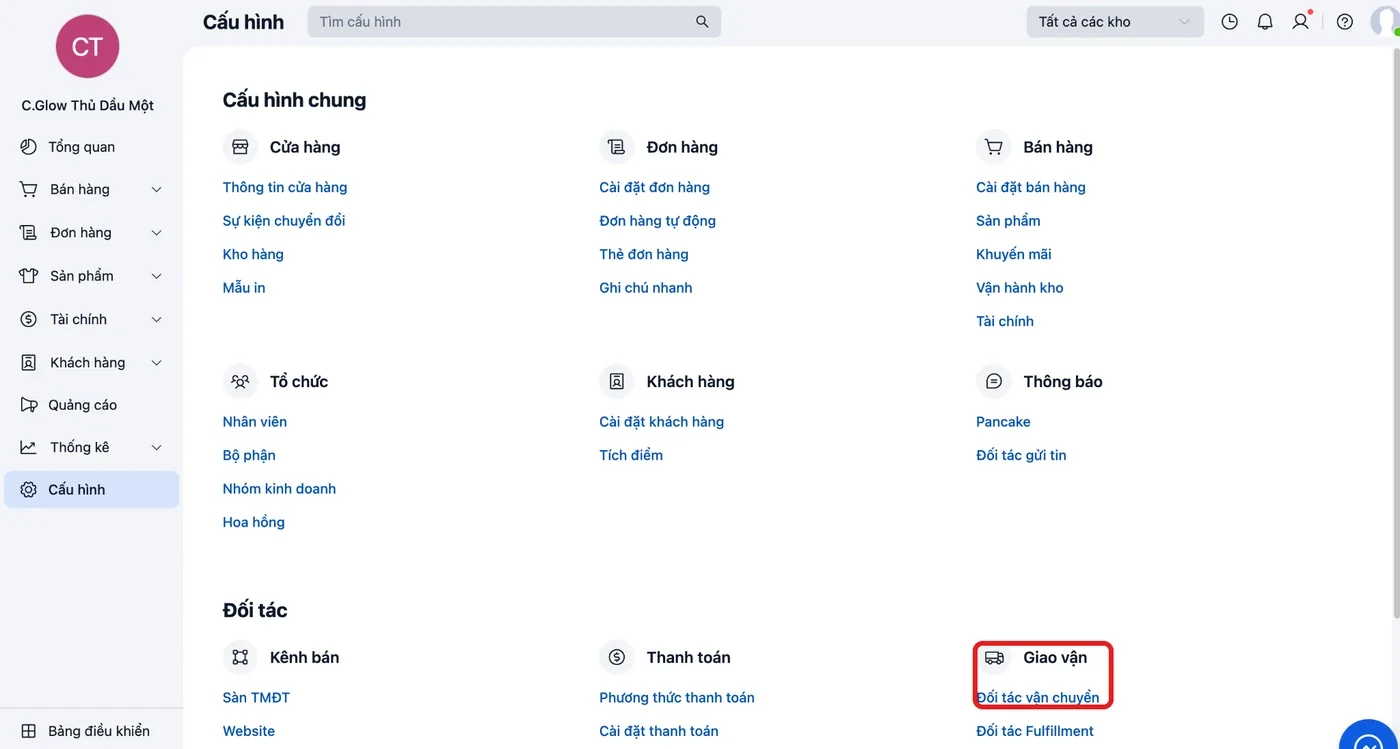
- In Settings, find Shipping (Giao vận) and select Shipping partners (Đối tác vận chuyển).
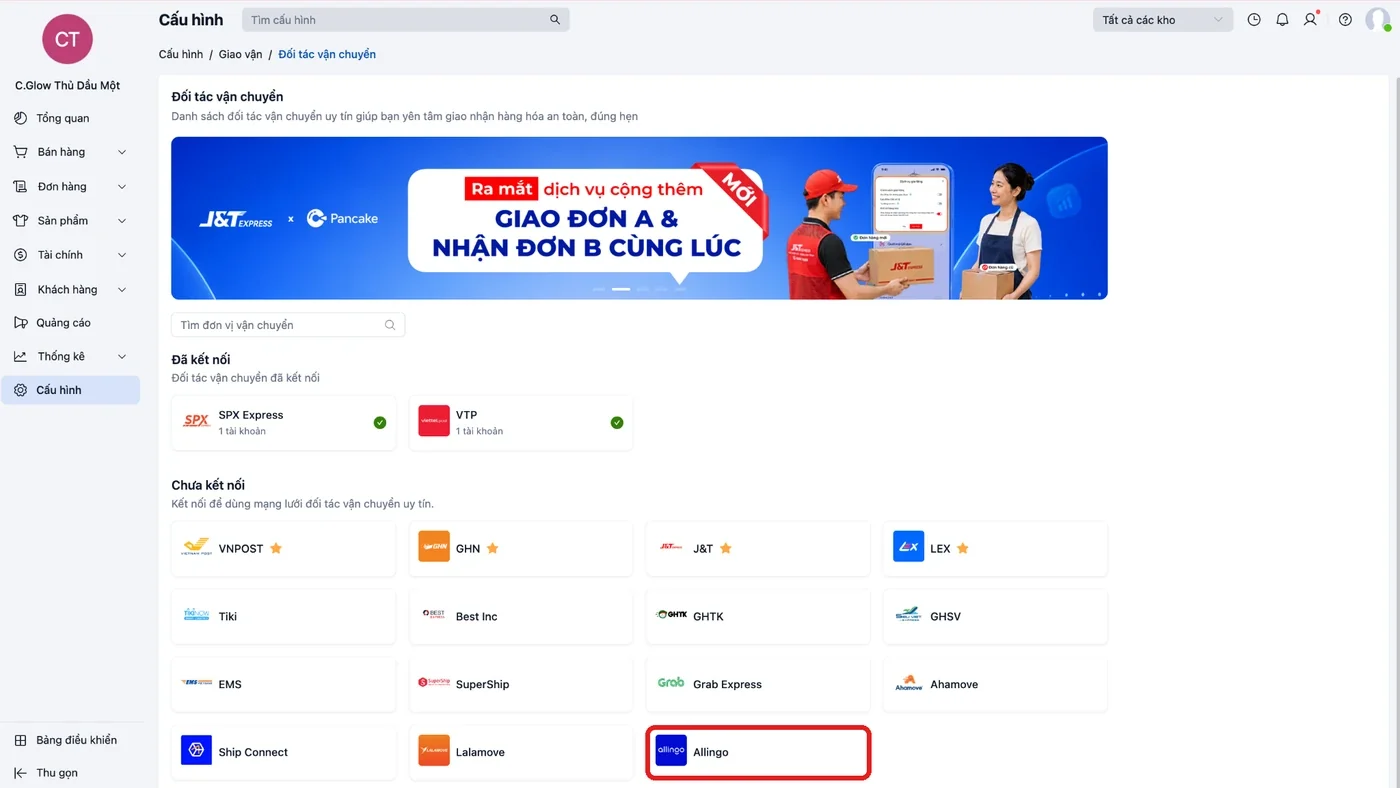
- Under Not connected (Chưa kết nối), select Allingo.
- The Allingo window opens with two tabs: Log in (Đăng nhập) and Sign up (Đăng ký).
- Already have an Allingo account: on the Log in tab, enter your Email and Password, then click Connect (Kết nối). Skip step 5.
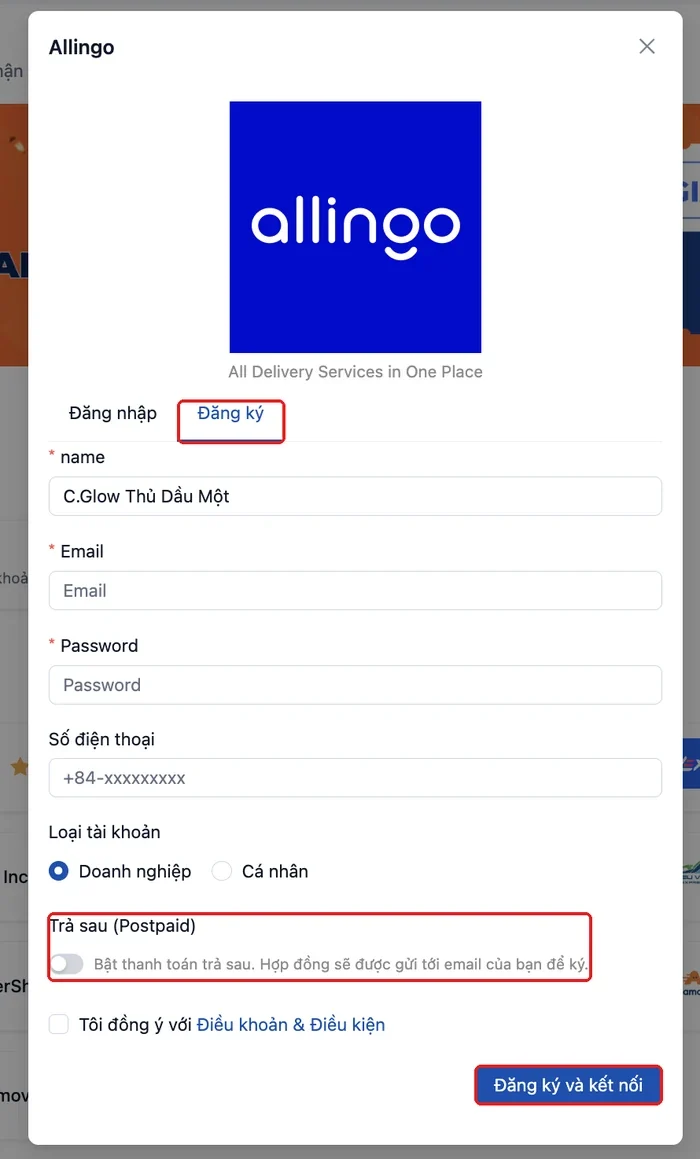
- No account yet: on the Sign up tab, fill in name, Email and Password (all three are required). Phone number is optional. Choose the Account type (Loại tài khoản: Business or Individual), tick I agree to the Terms & Conditions (Tôi đồng ý với Điều khoản & Điều kiện), then click Sign up and connect (Đăng ký và kết nối).
Sign up tab 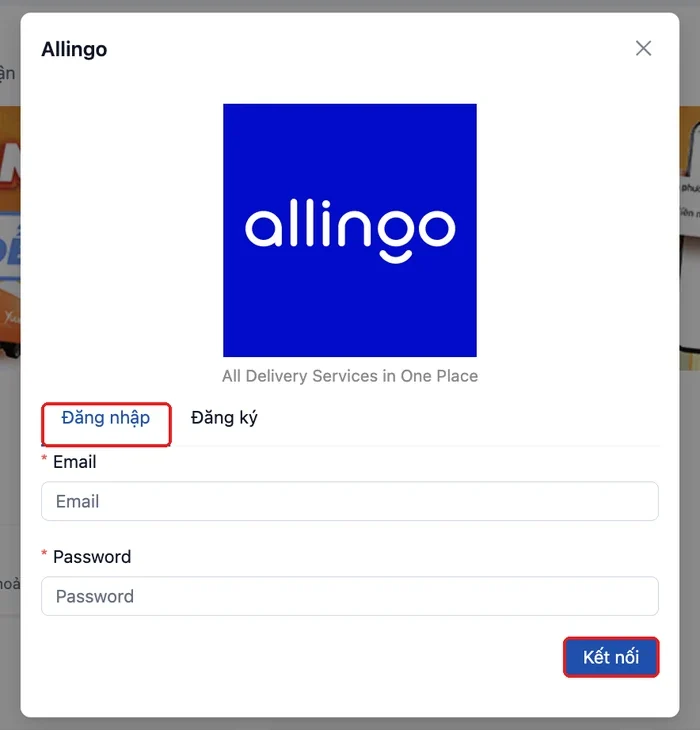
Log in tab Leave Postpaid (Trả sau) switched off if you do not need it. When it is on, a contract is sent to your email to sign. Postpaid terms are discussed directly with Allingo when you set up the postpaid contract.
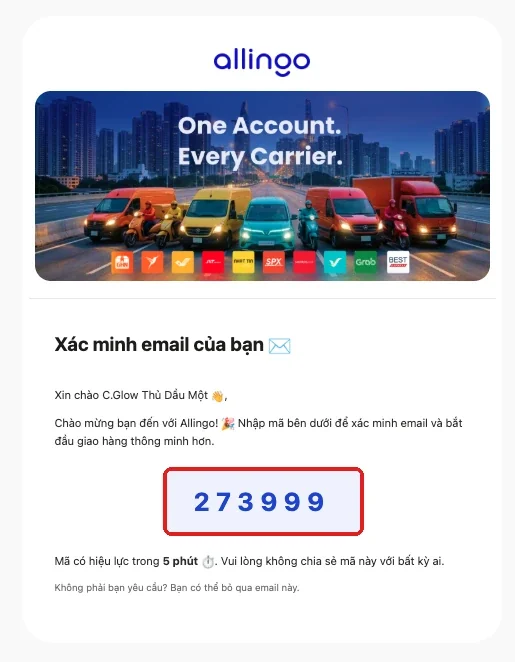
- Open the sign-up email, take the 6-digit OTP code and enter it in the form. The code is valid for 5 minutes.
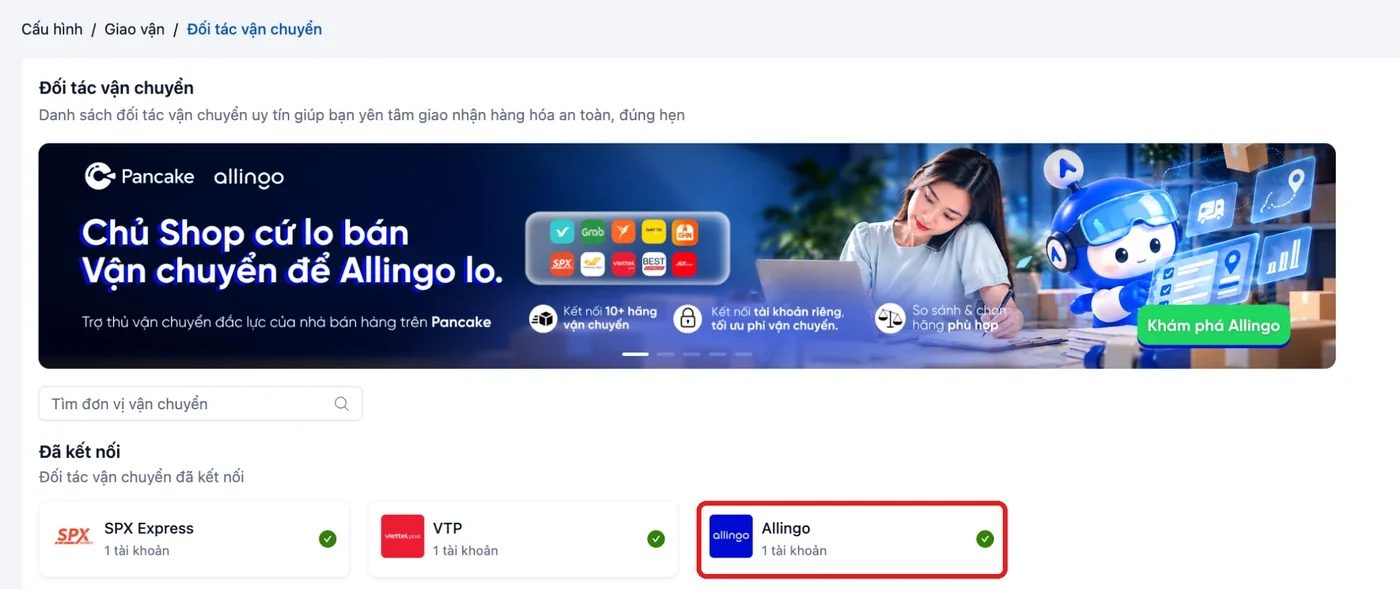
- Go back to Shipping partners and check that Allingo appears under Connected (Đã kết nối).
2.Create a shipment with Allingo
For each order you have two options: pick the carrier yourself, or let Allingo send the request to the available carriers based on the priority you choose.
Common steps
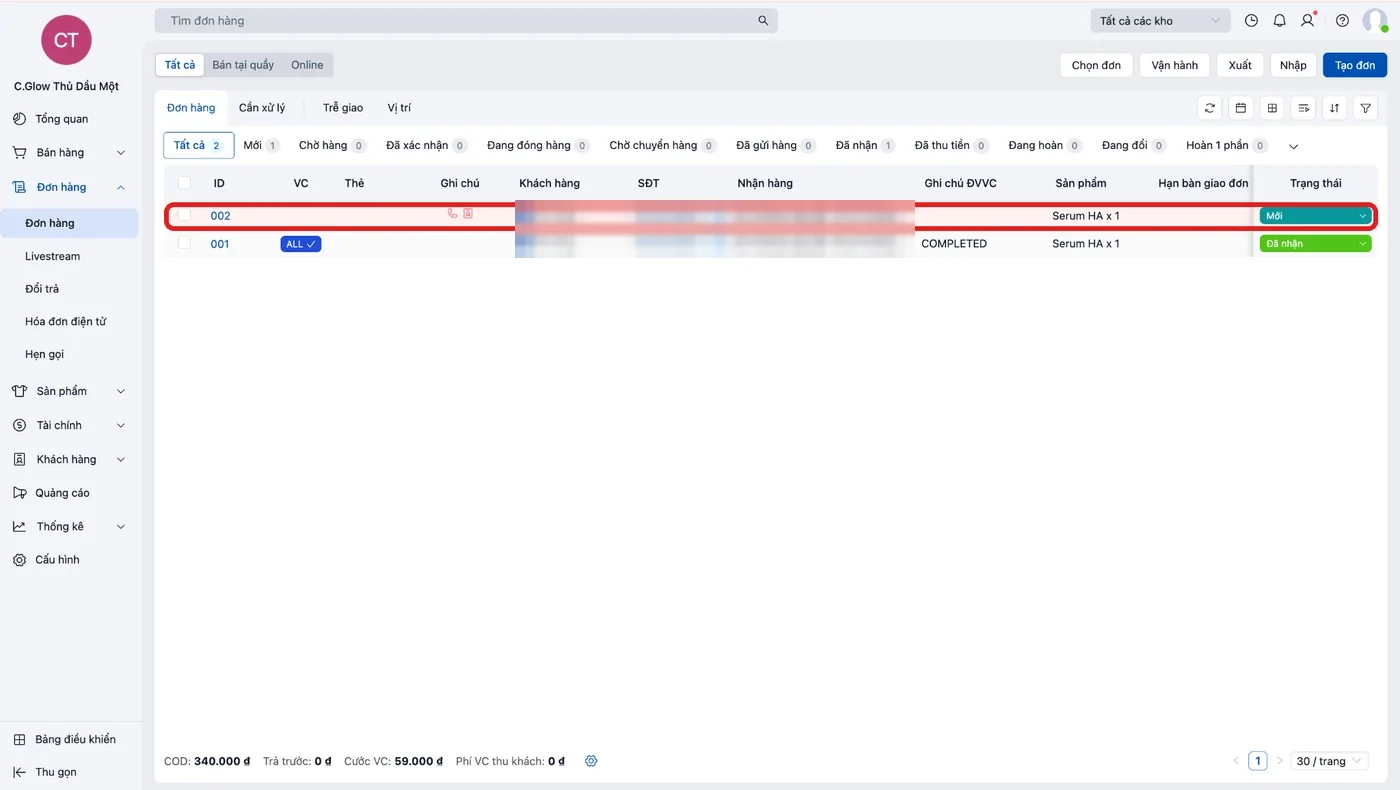
- Go to Orders (Đơn hàng) and open the order you want to ship.
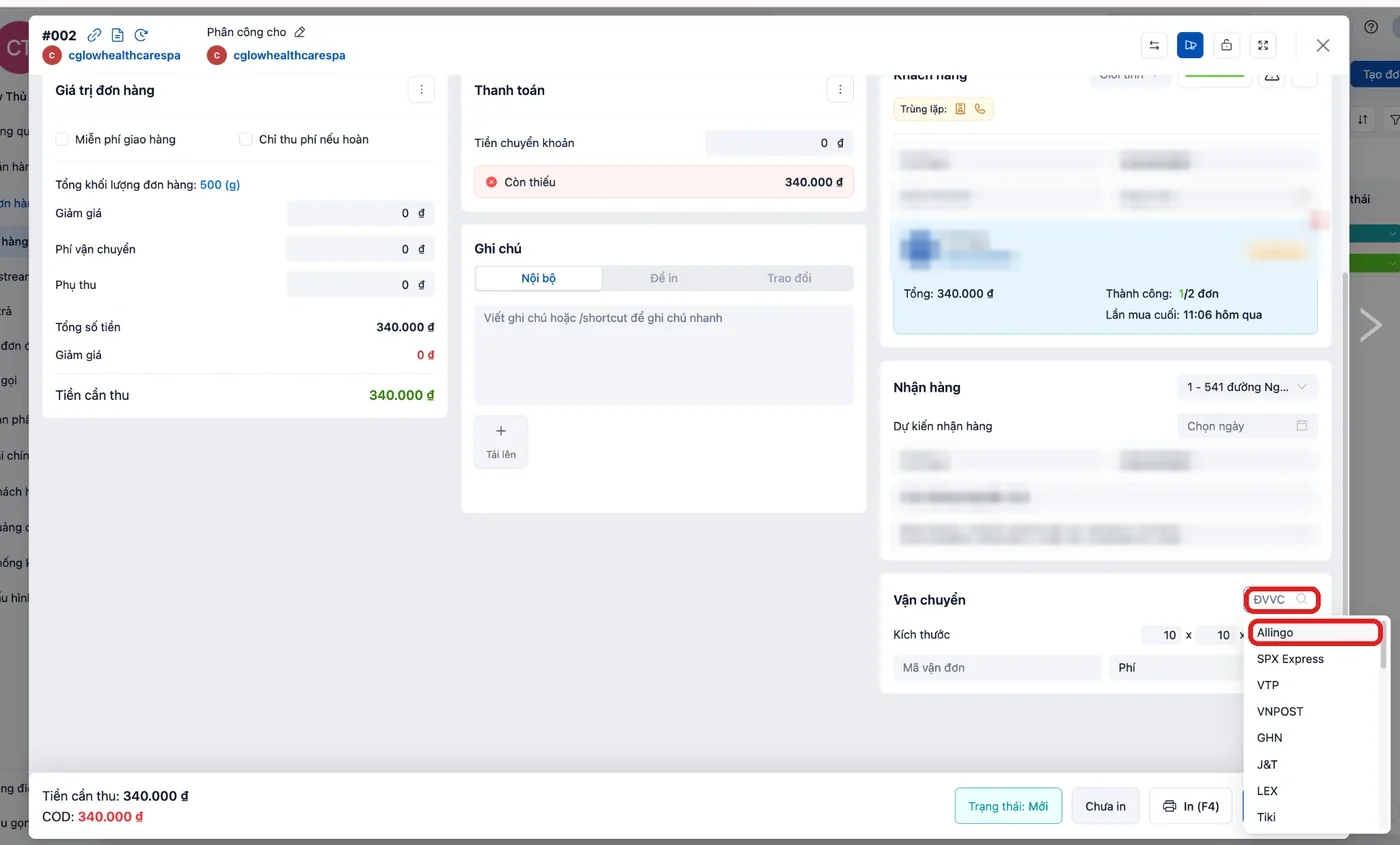
- Scroll to the Shipping (Vận chuyển) section, open the ĐVVC (carrier) field and select Allingo.
- Tick Auto-send order to Allingo (Tự động gửi đơn sang Allingo). If it is already ticked, leave it as is.
- Enter the Dimensions (Kích thước, in cm) of the actual parcel and check the order weight.
- Choose the options for the order.
Field Options Service (Dịch vụ) Standard (Tiêu chuẩn), Express (Nhanh) Pickup time (Thời gian lấy hàng) ASAP (Ngay), Scheduled pickup (Hẹn lịch lấy) Shipping fee payment method (Phương thức thanh toán phí vận chuyển) Allingo Wallet (Ví AllinGo), Allingo Postpaid (Trả sau AllinGo), Cash (Tiền mặt) Additional services (Dịch vụ bổ sung) Door-to-door delivery (Giao tận cửa), SMS notification (Thông báo SMS), Two-way delivery (Giao 2 chiều), Fragile goods (Hàng dễ vỡ), Thermal bag (Túi giữ nhiệt), Large thermal bag (Túi giữ nhiệt lớn), Allow inspection, Allow try-on, Partial delivery 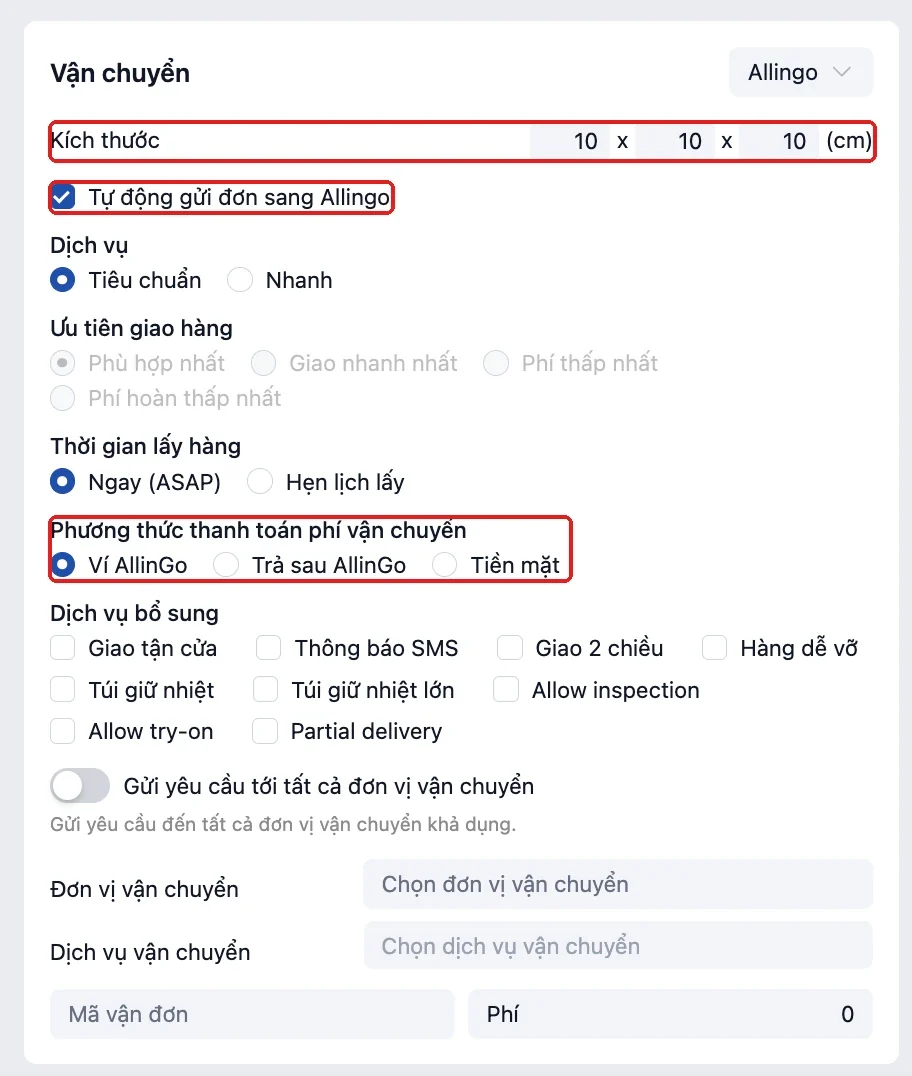
Then choose a carrier in one of two ways
Option 1. Pick the carrier yourself
Use this when you already know which carrier you want for this order.
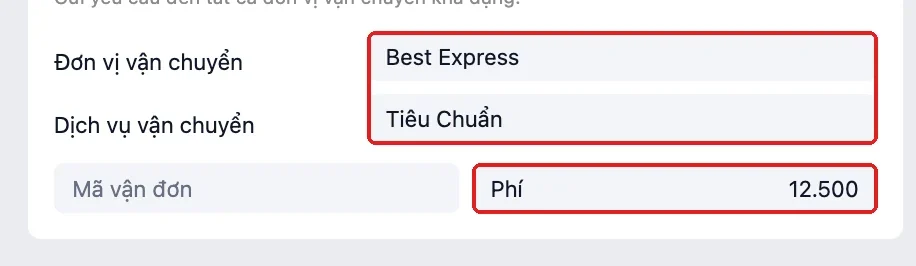
- Keep the Send request to all carriers (Gửi yêu cầu tới tất cả đơn vị vận chuyển) switch off.
- Click the Carrier (Đơn vị vận chuyển) field to see the carriers currently available.
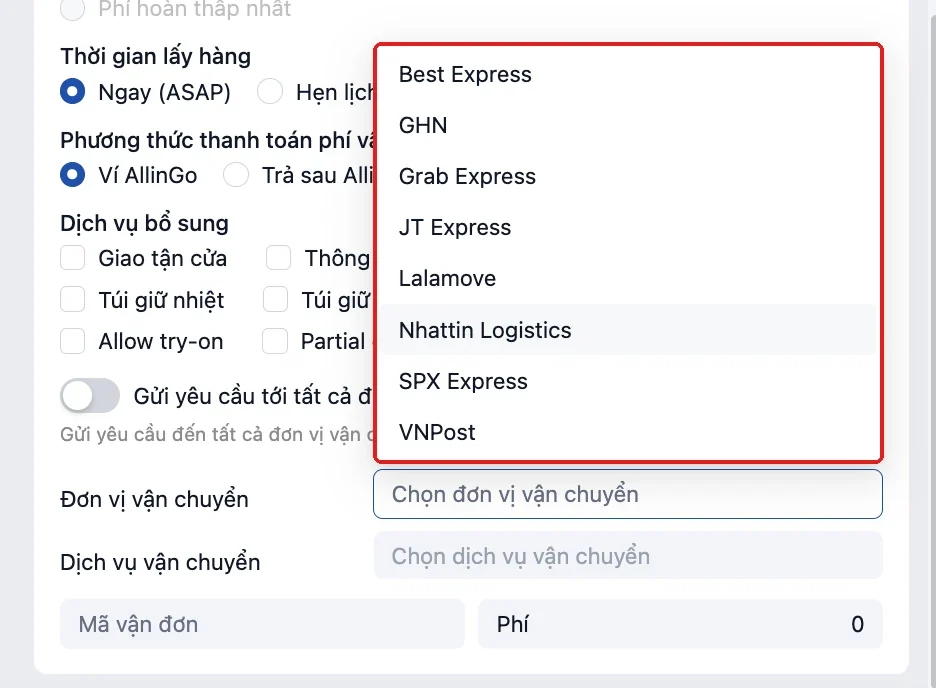
- Select a carrier, then select a suitable Carrier service (Dịch vụ vận chuyển). The fee appears in the Fee (Phí) field.
Option 2. Send the request to available carriers
Use this when you want Allingo to process the order by the order’s priority.
- Turn on the Send request to all carriers switch.
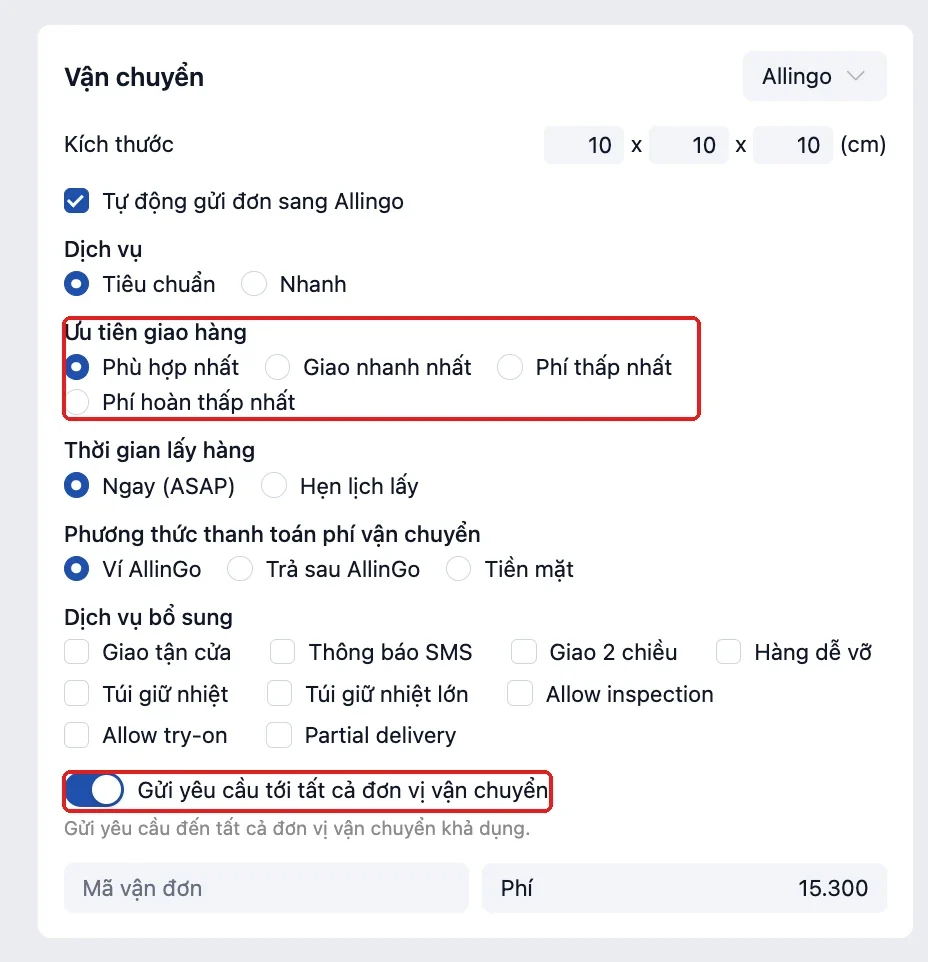
- Choose Delivery priority (Ưu tiên giao hàng): Best fit (Phù hợp nhất), Fastest delivery (Giao nhanh nhất), Lowest fee (Phí thấp nhất) or Lowest return fee (Phí hoàn thấp nhất). This option can only be selected while the switch is on.
- Allingo sends the request to the available carriers and processes the order according to the priority you chose.
Save the order
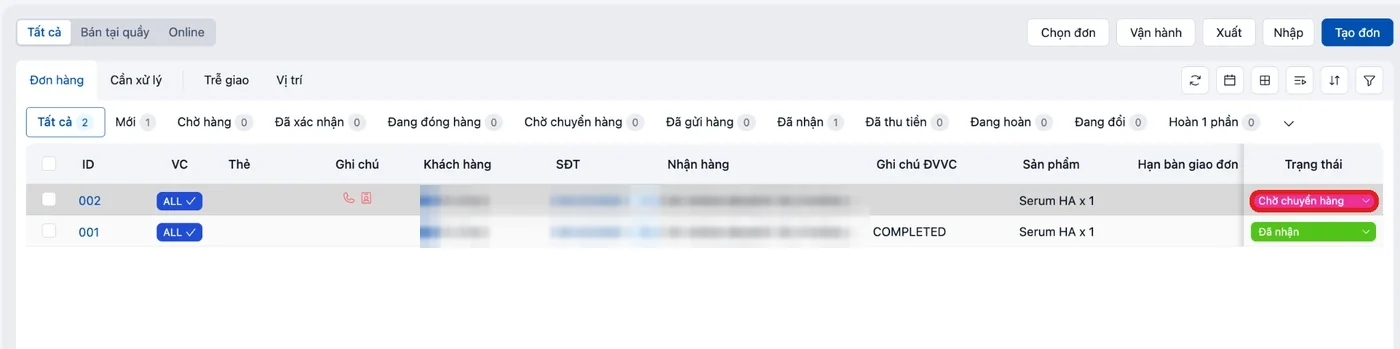
Click Save (Lưu). The order is sent to Allingo and its status changes to Awaiting shipment (Chờ chuyển hàng).
3.Track your orders
You can track an order in two places.
- In Pancake POS: check the order status in the Orders list.
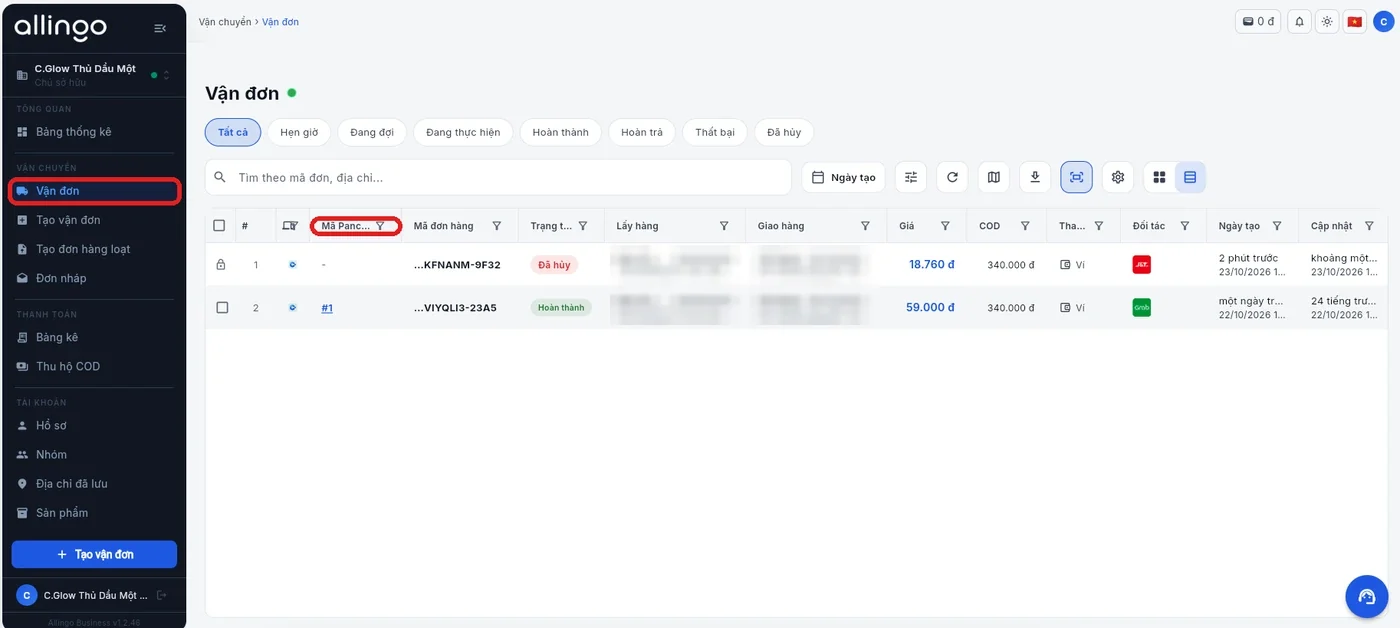
- In Allingo: log in at business.allingo.vn with the Allingo account you created in section 1, then open Shipments (Vận đơn). Orders sent from Pancake appear there.
4.Frequently asked questions (FAQs)
Do I have to reconnect for every order?
I already have an Allingo account. What should I do?
Should I use Option 1 or Option 2?
Where do I see the shipping fee?
Where can I get support?
How do I use Postpaid?
How do I top up the Allingo Wallet?
Start in Pancake POS
Go to Settings > Shipping > Shipping partners and select Allingo.